
Announcements
Scanning documents has become an essential task in everyday life, whether it is to organize important papers, send files by email or simply save physical space.
The good news is that you no longer need expensive equipment or visits to the stationery to turn physical documents into quality digital files. With current technology, especially with the smartphones we carry in our pocket, this process has become incredibly simple and accessible to anyone.
Announcements
In this complete guide, you will discover practical and efficient methods to scan documents quickly, as well as tools that will revolutionize the way you deal with papers in everyday life. Prepare to optimize your time and raise your productivity to a new level!
Why has digitizing documents become indispensable?#
We live in an era where digital information predominates. Keeping stacks of paper at home or in the office not only takes up valuable space, but also makes it difficult to quickly access documents when you need them most.
Announcements
Scanning provides extra security: your files are protected from loss, fire, or natural deterioration of paper. Additionally, sharing a digital document takes seconds, while sending a physical copy can take days.
Businesses and freelancers save significantly by reducing costs with printing, physical storage, and file organization. For students, having digitized notebooks and notes facilitates quick reviews and searches.
The smartphone as powerful pocket scanner#
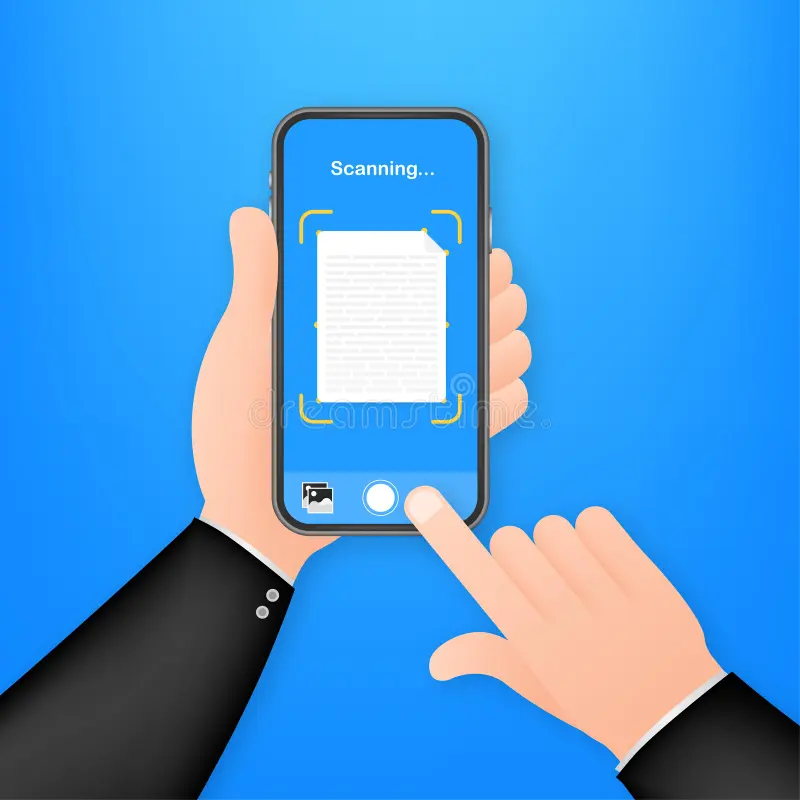
Your phone probably has a camera with enough resolution to capture documents with stunning clarity. Combined with specialized applications, this tool you already have turns into a professional scanner.
Modern applications not only photograph the document, but also apply automatic perspective corrections, adjust brightness, remove shadows, and even recognize text through OCR (Optical Character Recognition) technology.
Among the most popular options are Microsoft Lens, Adobe Scan, CamScanner, and Google Drive. Each offers unique features, but all share the ease of use and professional results in a few taps on the screen.
Step by step to scan with mobile phone#
First, choose a place with good lighting, preferably natural light, or a uniform light source that avoids excessive shadows on the document.
Position the paper on a flat, contrasting surface. If the document is white, a dark table makes it easy to automatically recognize the edges. Open the scanner app and position the camera parallel to the document, maintaining an adequate distance.
Most applications automatically detect the edges of the paper and capture the image when you keep the phone stable. After capture, you can manually adjust the edges, choose filters (black and white, colored or gray scale) and save in various formats.
Essential apps for fast scanning#
O Microsoft Lens it stands out for its seamless integration with the Office ecosystem. It allows you to scan documents, whiteboards, business cards and even capture text from images for later editing.
Already the Adobe Scan it offers professional features for free, including automatic text recognition, creation of searchable PDFs and synchronization with the Adobe cloud. The intuitive interface makes the process extremely agile.
O Google Drive it has an integrated scanner function that many users are unaware of. When opening the application, tap the add icon (+) and select “Scan”. Files are automatically saved in the cloud, making it easy to access from any device.
For those who deal with large volumes of documents, the Genius Scan's it offers batch processing, allowing you to scan multiple pages quickly and organize them into a single, sequential numbered PDF.
Do traditional scanners still make sense?#
Although smartphones have democratized digitization, dedicated scanners still have their place, especially in professional environments with specific demands on volume and quality.
Desktop scanners offer superior resolution, important for scanning old photographs, artwork or documents that require extreme detailing. They also process multiple pages automatically through the document feeder.
For offices that process hundreds of documents daily, investing in a scanner with a duplex automatic feeder (which scans both front and back simultaneously) represents a significant productivity gain.
Modern models connect via Wi-Fi, allowing multiple users to share equipment and save files directly to network folders or cloud services, without the need for an intermediary computer.
Techniques to achieve the best scanning quality#
Lighting represents the most critical factor for professional results. Avoid direct flash, which creates unwanted reflections, especially in plasticized documents or bright photographs. Prefer diffuse natural light or LED lamps positioned laterally.
Books and notebooks require special attention: gently press the center to avoid distortions caused by the curvature of the pages. Some applications automatically correct this curvature, but preventing is always better.
Choose the appropriate resolution for your intended use. For plain text documents, 200-300 DPI (dots per inch) is sufficient. Detailed photographs or images benefit from 600 DPI or more, although they result in larger files.
When scanning color documents, adjust the white balance to ensure true to original colors. For black and white text, high contrast mode improves readability and reduces file size significantly.
Converting images into editable text#
OCR technology has revolutionized the way we interact with scanned documents. Instead of just a static image, you get text that can be copied, edited and searched easily.
Apps like Microsoft Lens and Adobe Scan include automatic OCR, recognizing text in multiple languages with impressive accuracy. After processing, you can export the content directly to Word, OneNote, or other text editors.
For best results with OCR, ensure that the original text is clear and well lit. Very small fonts or damaged documents may result in recognition errors that will require later manual correction.
Organizing and managing scanned documents#
Scanning is just the first step; properly organizing your files determines how much time you will actually save in the future. Create a logical and consistent folder structure from the start.
Use descriptive file names that include date and category. For example: “2024-01-15_Recibo_Energy” is infinitely better than “Scan001.pdf”. This practice facilitates future searches and avoids confusion.
Cloud storage services like Google Drive, Dropbox, or OneDrive ensure your documents are accessible from anywhere and protected from device loss. Set up automatic sync so you never lose an important file.
Consider using document management apps like Evernote or Notion, which let you add tags, create custom categories, and even set reminders for documents that require future action, such as accounts payable.
Security and privacy when scanning sensitive documents#
Personal documents such as RG, CPF, bank vouchers and tax returns contain extremely sensitive information that requires special care when being scanned and stored.
Whenever possible, add password protection to PDFs that contain sensitive data. Most scanner applications offer this option natively during the file saving process.
Avoid storing highly sensitive documents exclusively on public cloud services. For maximum security, keep encrypted local copies on an external hard drive or use cloud services with end-to-end encryption.
When sending scanned documents via email or messages, consider using temporary link sharing services that automatically expire after a certain period or number of hits.
Automating the scanning process#
For those who regularly deal with documents, establishing automated routines saves precious time. Configure shortcuts on your smartphone that directly open the scanner app with pre-defined settings.
Some physical scanners allow you to program automatic targets: press a button and the document goes straight to a specific folder in the cloud or is automatically sent by email to pre-registered recipients.
Use automation tools like IFTTT or Zapier to create custom workflows. For example, when a document is added to a particular Dropbox folder, it is automatically renamed following a specific pattern and moved to another folder organized by category.
Digitizing different types of documents#
Business cards represent a special case that deserves attention. Apps like CamCard or Microsoft Lens itself automatically recognize contact information and add it directly to your phonebook.
Books and notebooks require patience. For best results, use bookends that keep pages open without damaging the binding. Some applications offer specific mode for bound documents, correcting curvature distortions.
Old photographs deserve special care. Gently clean the surface before scanning, remove from the frame when possible and use the maximum available resolution to preserve details. Color mode preserves original tones even in faded photos.
Thermal receipts (common in supermarkets and pharmacies) fade quickly. Scan them immediately after receiving them to preserve the information before the print disappears completely.
Optimizing the size of scanned files#
Too large files make it difficult to share via email and consume precious storage space. Fortunately, there are several strategies to reduce size without sacrificing noticeable quality.
For plain text documents, black and white (monochrome) mode drastically reduces size compared to color. The quality difference is virtually unnoticeable for text, but the file can be up to 80% smaller.
Free online tools like SmallPDF or iLovePDF compress PDFs efficiently while maintaining good readability. Some offer different levels of compression for you to choose the optimal balance between size and quality.
When scanning multiple pages, evaluate whether they really need to be in a single file or whether individual pages would make future use easier. A 50-page document can be more practical divided into smaller sections by subject.
Solutions for digitization on the move#
Professionals who travel frequently or work remotely especially benefit from mobile scanning applications. The ability to capture and send important documents from anywhere eliminates the need to wait to return to the office.
Set up automatic synchronization with your preferred cloud so documents scanned during travel are immediately available to your team in the office. This streamlines approval processes and reduces project delays.
Some banks and financial institutions accept scanned documents via the application for opening accounts or credit applications, making bureaucratic processes significantly faster and more convenient.
Transforming digitalization into a productive habit#
The key to making the most of scanning is to incorporate it into your daily routine. Establish the habit of scanning important documents immediately upon receiving them, avoiding the accumulation of papers that later becomes an intimidating task.
Take a few minutes a week to review accumulated physical documents and decide which ones deserve to be scanned before responsible disposal. This gradual practice is much more manageable than facing huge stacks at once.
Teach family members or co-workers to use the same tools and organization patterns. When everyone follows the same system, finding shared documents becomes infinitely easier and more efficient.
With the techniques and tools presented in this guide, you are completely prepared to turn mountains of paper into organized, accessible and secure files. Scanning is not only a technological trend, but a practical necessity that saves time, money and space, allowing you to focus on what really matters in your personal and professional life
Continue reading
You might like it too

Steps that Transform Your Day
Mano, if you're not already using a step counter app in 2025, you're literally missing out on the fitness game.

Remedy on the Spot: Never Forget
Forgot to take the medicine again? Calm down, it's not just you who go through it. The good news is that the.